n-Track for iOS 1.8 and later supports external Pro-Audio audio devices, turning your iPad into a powerful audio production machine. You can record pristine 192 khz / 24 bit multichannel audio without having to carry around an heavy computer and with the ease of use typical of the iPad.
You can use n-Track on the iPad to record tracks on the field, then either mix and quickly email them directly from the device or later export the recorded tracks (as uncompressed .wav files) to a computer to edit, mix and master the recording with n-Track for PC or Mac or any other audio software.
The iPad supports connecting external devices via the optional Camera Connection Kit. The Camera Connection Kit includes an adapter that allows conencting an USB cable to the standard iPad dock connector. The Camera Connection Kit is currently not supported on the iPhone and iPod Touch so no external audio device can currently be connected to those devices. You can however connect external analog adapters that allow connecting two mics or guitars to the built-in analog stereo input.
The iPad supports single and multichannel audio devices connected via USB. Not all USB audio devices will work, only those that usually require no driver software to be installed on the computer. Those are USB devices that implement Class Compliant USB audio.
n-Track for iOS supports recording from external USB audio devices. We have tested recording up to 8 simultaneous input channels with pro-audio devices such as the RME Fireface UCX.
When you've connected the USB device click on the Settings button  in the lower toolbar. You can then select the number of input channels that you want to record from. After you've closed the settings box tap the record button to start recording from all the selected inputs.
If you want more control over which input is recorded to which track, you can add new empty tracks with the + button in the lower toolbar, then open the track mixer  , then press the record arm button
 , then select the input you want to record to that track. The rec-arm button will become red:
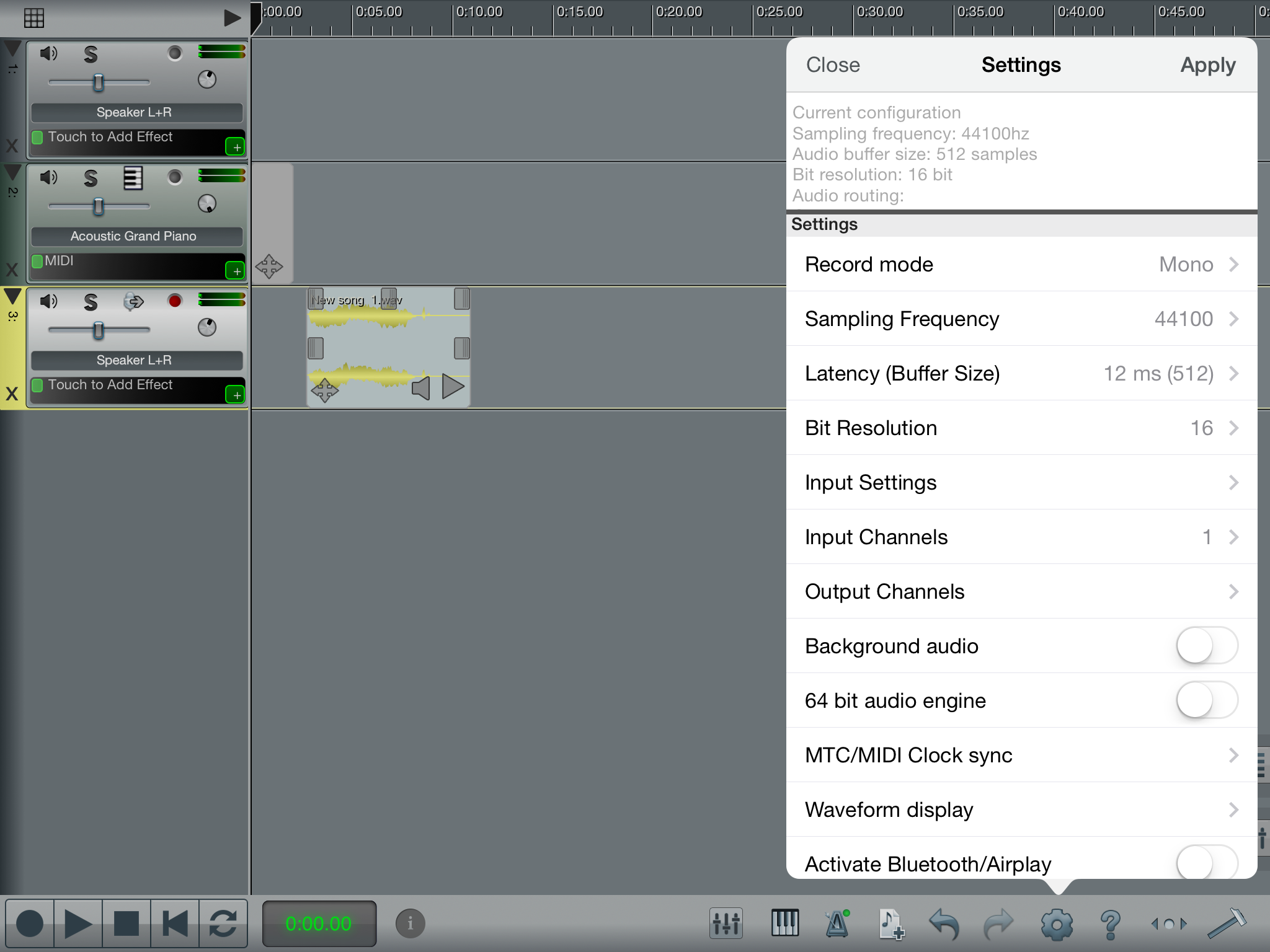
Open the settings box , select 16, 24 or 32 bit pressing the Bit resolution button.
You can also select the sampling frequency to use. If you plan to use live monitoring of the recorded signal or processing live input you can take advantage of the low buffering settings. The default buffering setting of 512 samples (12 ms) should work well in most cases. Increase the buffering if you hear clicks or drop-outs during recordings.
 n-Track